If you are upgrading a recorder or planning a new install, the drive is doing a different job than the disk in a PC. Your NVR or DVR is often writing multiple video streams at once, around the clock, with occasional playback scrubbing on top. A drive that is only optimized for bursty desktop use can look fine at first, then show gaps, slowdowns, or early SMART warnings once overwrite pressure builds.
The two families below are the ones we track closely on Hard Drive Prices because installers and homeowners both reach for them, compatibility lists usually include them, and the spec story is explicit about surveillance workloads. Before you open the product pages, use the sections below to size storage correctly and avoid the mistakes we still see in the field.
What makes a hard drive suitable for CCTV and DVR
Continuous writes, not occasional saves. Surveillance HDDs expect the disk to spend much of its time ingesting video. Firmware prioritizes steady streaming writes so frames are less likely to drop when camera count or bitrate spikes.
Workload rating (TB per year). Vendors publish how many terabytes of writes per year the drive is designed to handle. Desktop disks are built for lighter annual write totals. If you run many cameras, high resolution, or long retention, you want headroom here, not a part that is already near its design envelope on day one.
Multi-stream behavior. A single 4K camera can be manageable. Four to sixteen streams, plus sub-streams and motion-only branches, adds up fast. Surveillance lines advertise support for many concurrent streams because that matches NVR reality.
Vibration tolerance in multi-bay recorders. In a 2-bay or 4-bay chassis, disks can shake each other. Better surveillance and enterprise-style designs compensate for that effect. If you are stacking several spindles, this matters more than in a one-drive DVR.
Recording technology (CMR vs SMR). Many surveillance HDDs use CMR-style recording so sustained writes stay predictable. SMR can be workable in some hosts, but cheap SMR desktop disks in unknown DVR firmware is a common risk. When in doubt, buy a line that is explicit about surveillance tuning and avoid mystery bare drives.
Cooling and power. Small metal NVR cases with slow fans punish warm disks. Surveillance models often target lower power profiles than performance-first desktop disks, which helps thermals in tight cabinets.
How to choose capacity for camera count, resolution, and retention
Start with bitrate, not marketing megapixels. Two cameras at the same resolution can use very different storage if one uses a higher bitrate or a less efficient codec. H.265 (HEVC) usually needs less space than H.264 at similar visual quality, but only if your cameras and recorder both support it end to end.
A practical planning approach. Take the approximate megabits per second per camera (your NVR often shows this), multiply by the number of cameras, then convert to gigabytes per day. Multiply again by the number of days you must keep footage before overwrite. Add at least 10 to 20 percent headroom for filesystem overhead, motion-event bursts, and future cameras.
Retention is the silent capacity killer. Moving from 7 days to 30 days at the same bitrate multiplies storage needs by more than four. If you need a month or more of history, jump a capacity tier early instead of running the disk at 95 percent full.
When a second drive or RAID matters. Some NVRs support RAID 1 or span. If losing a week of evidence would hurt, plan redundancy and a replacement disk on the shelf, not a heroic single-disk gamble.
SSD vs surveillance HDD for NVR and DVR
SSDs can be excellent for boot, databases, or small all-flash systems, but pure SSD storage for many continuous writers gets expensive fast, and sustained overwrite behavior still needs honest planning. For typical multi-camera homes and SMB kits, a surveillance HDD remains the default because cost per TB and well-understood endurance stories match the workload.
Use an SSD when the vendor certifies it, the channel count is low, and you accept the price. Use a surveillance HDD when you want predictable economics for multiple streams and long retention.
Installation and compatibility
Check the recorder compatibility list first. Some vendors validate specific families or firmware behaviors. If your manual calls out surveillance drives, treat that as more than a suggestion.
Match interface and form factor. Most internal bays want 3.5 inch SATA. M.2 slots are not interchangeable with SATA bays without the right hardware.
Label bays and photograph cable routing. Field swaps are easier when you know which disk was which and you are not guessing power leads in a cramped cabinet.
Pair with clean power. Brief brownouts can truncate writes. A small UPS for the recorder and network path often costs less than a return trip and lost footage.
Common mistakes people make with CCTV storage
Using a leftover desktop drive to save money. It might boot and format, then fail under continuous overwrite or throw timeouts when the system is already hot.
Buying the smallest disk that barely fits today. Cameras get added, bitrate gets raised, and retention rules change. Buy one step larger if the price per TB is reasonable.
Mixing wildly different drive models in one pool. Some setups tolerate it, others get uneven wear or odd rebuild behavior. Matching pairs is boring and usually safer.
Ignoring SMART and recorder health alerts. If the UI warns about disk problems, schedule a replacement before you are doing it as an emergency after an incident.
How we picked these drives
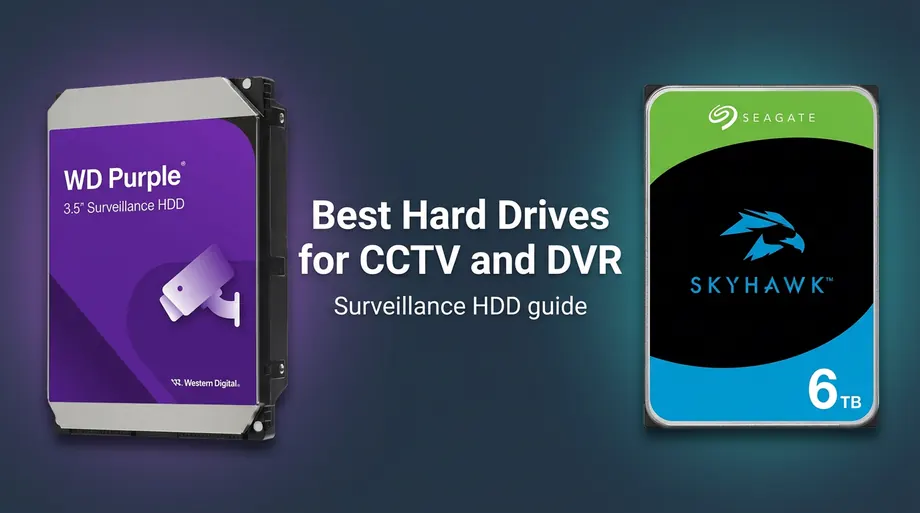
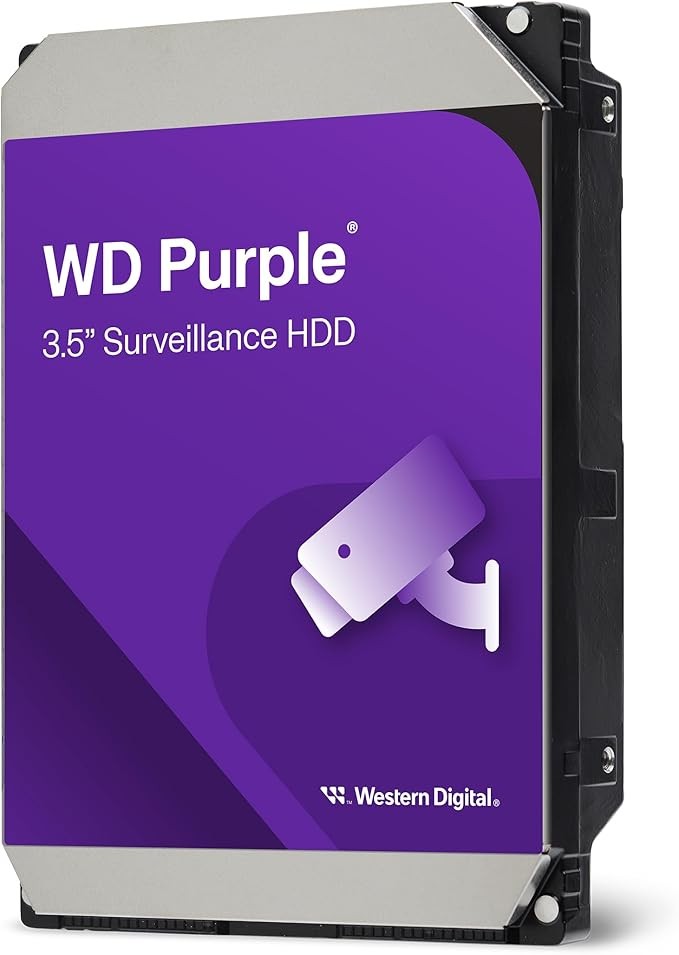
We focused on Western Digital WD Purple and Seagate SkyHawk because they are the two surveillance lines most often cross-shopped, both publish clear surveillance positioning, and both map cleanly to DVR and NVR use cases without asking buyers to guess whether a desktop SKU is safe. We compare them head to head in the table below, then go deeper on each line in the cards.
When you are ready to compare capacities and live pricing, use the home comparison table or jump straight to WD Purple and Seagate SkyHawk. If you also run a file server or NAS alongside cameras, read our best hard drives for NAS guide so you are not mixing surveillance and NAS assumptions in one box.
 Buy on Amazon