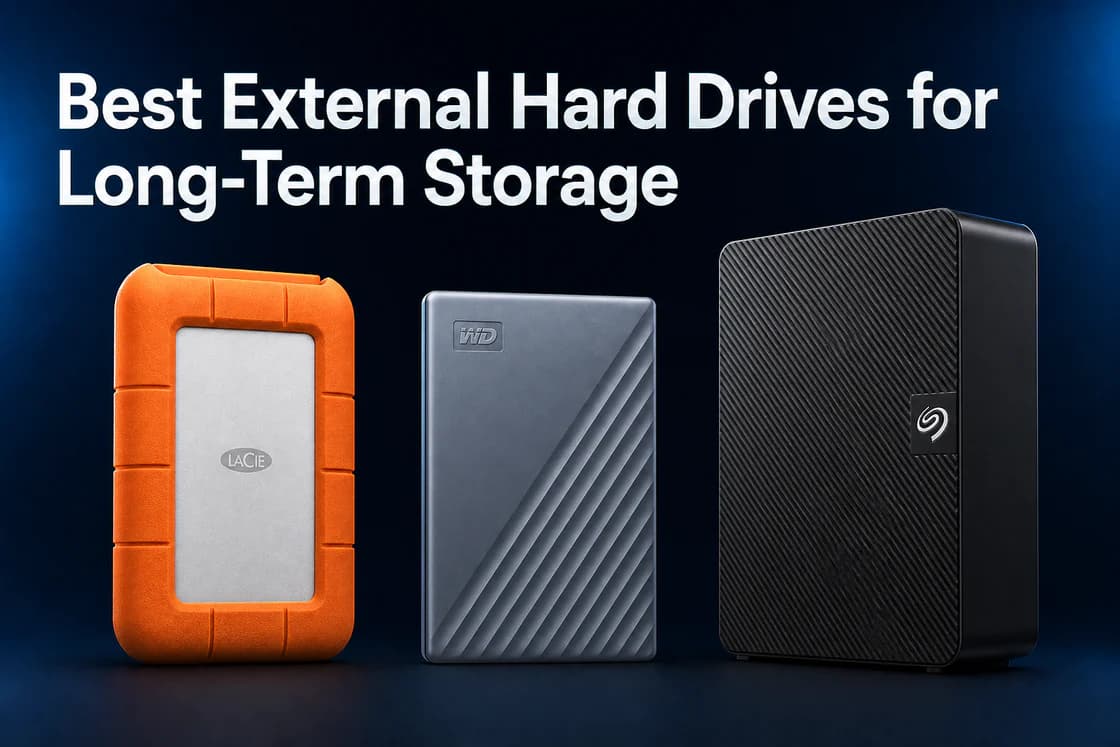
If your photo library, 4K family video, or work project archive is creeping past the free tier of every cloud sync tool you tried, you are not alone. External hard drives still matter because they give you predictable cost per terabyte, offline control, and a physical object you can label, store, and hand to someone you trust. This guide is written for United States shoppers: every buy button we surface is tuned for Amazon.com, prices are discussed in USD, and power notes assume standard US household outlets.
Portable vs desktop for long-term storage
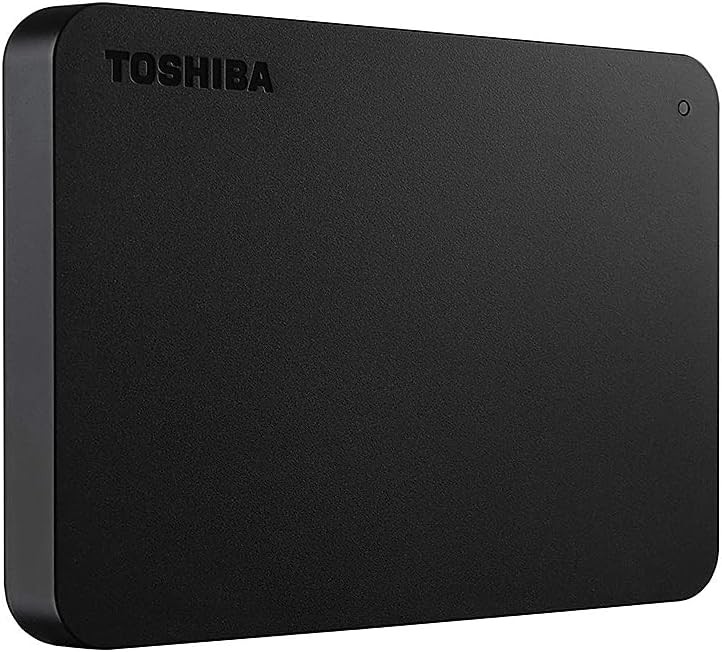
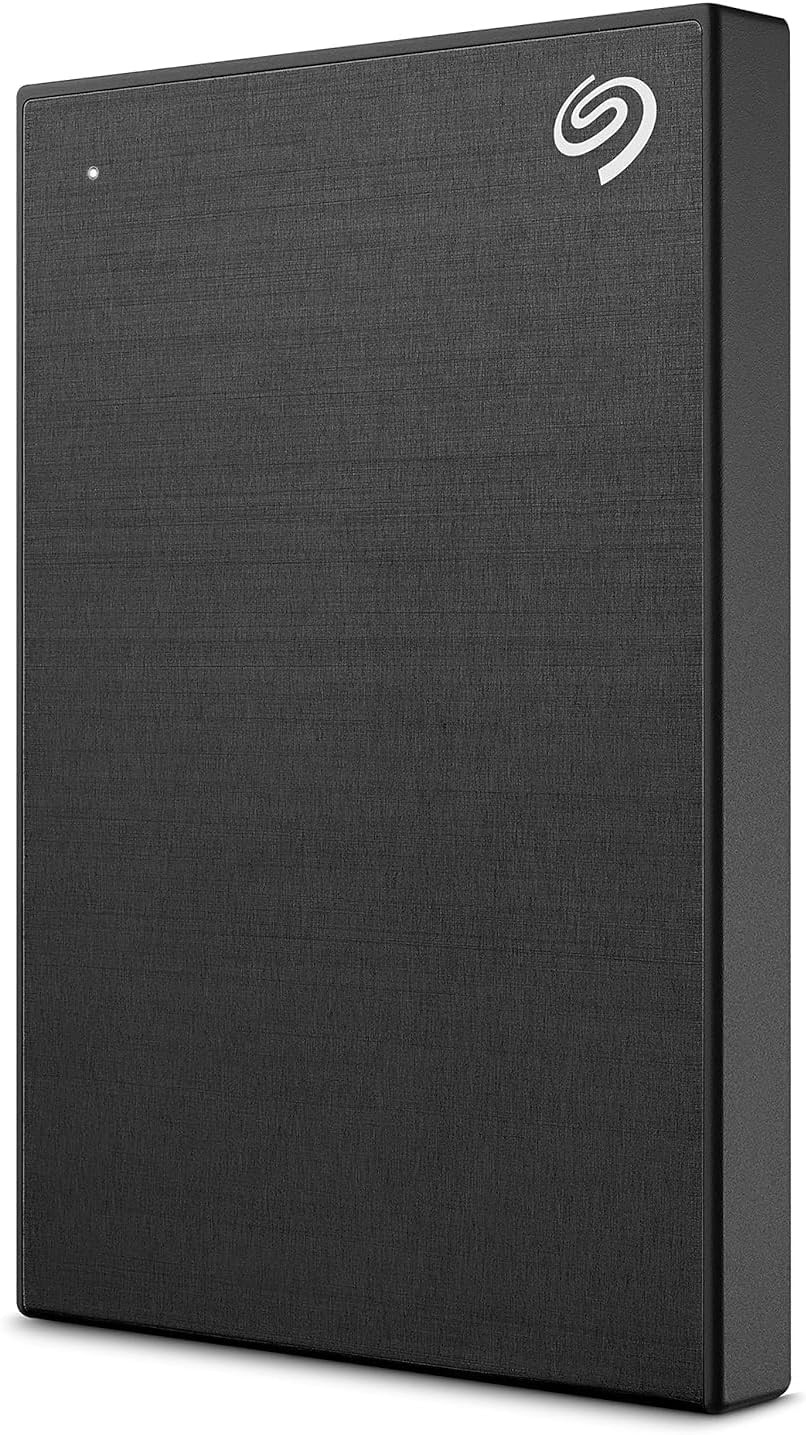
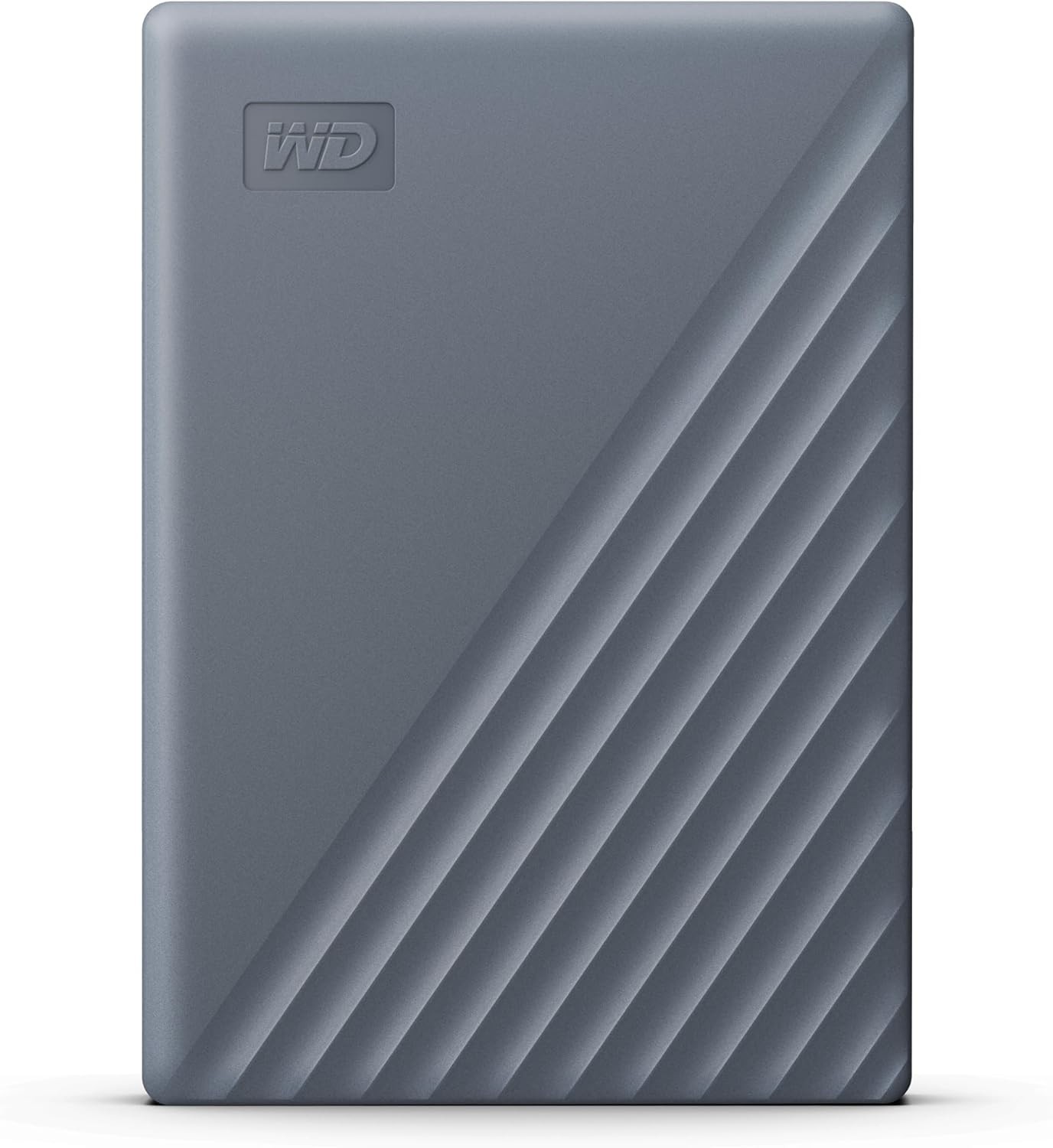
Portable drives pull power from the same USB cable that carries data. That makes them ideal for laptops, travel kits, and sneaker-net backups between two desks. They cap out at lower total terabytes than desktop bricks, and they run warmer when you hammer them on soft surfaces.
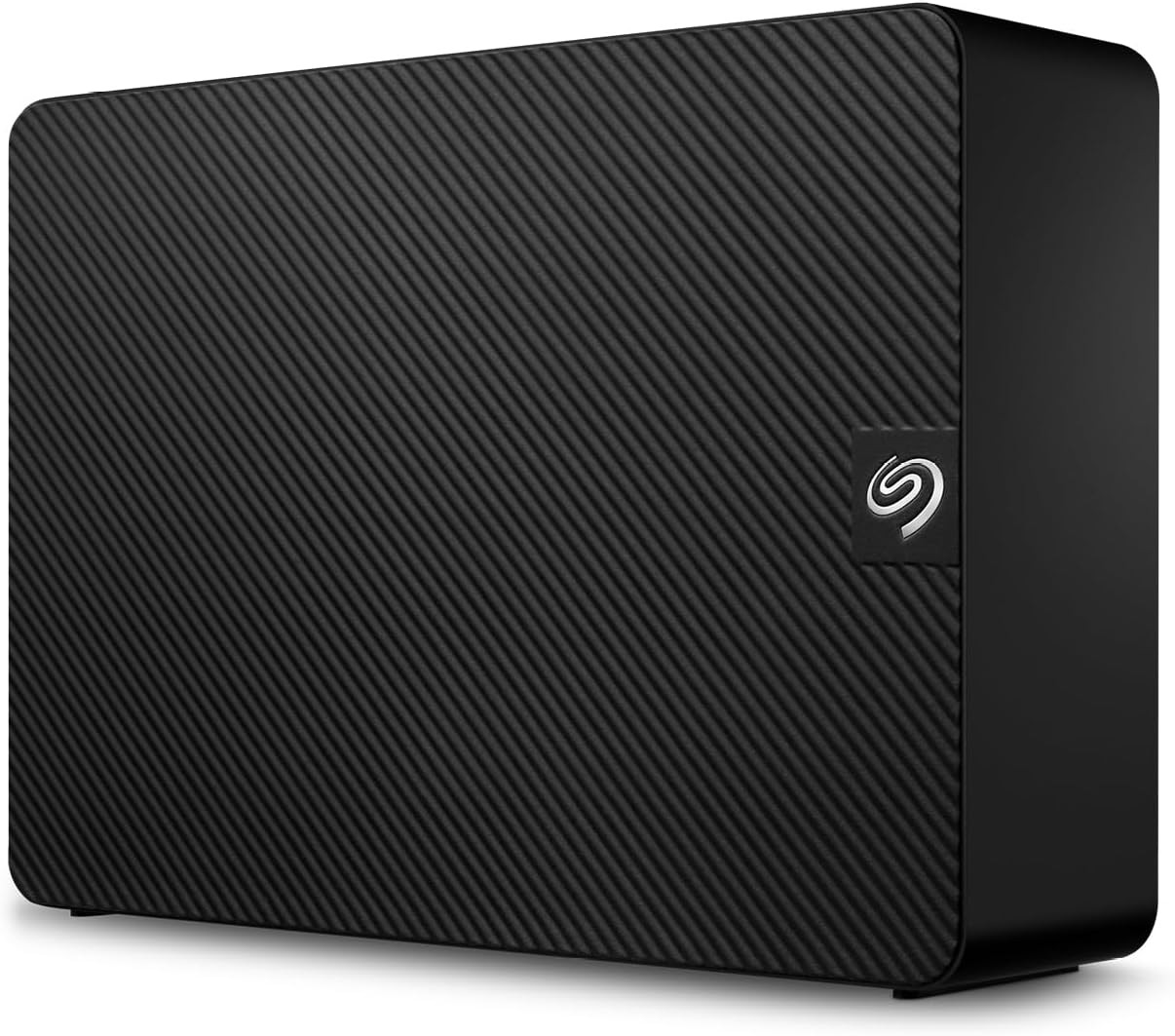
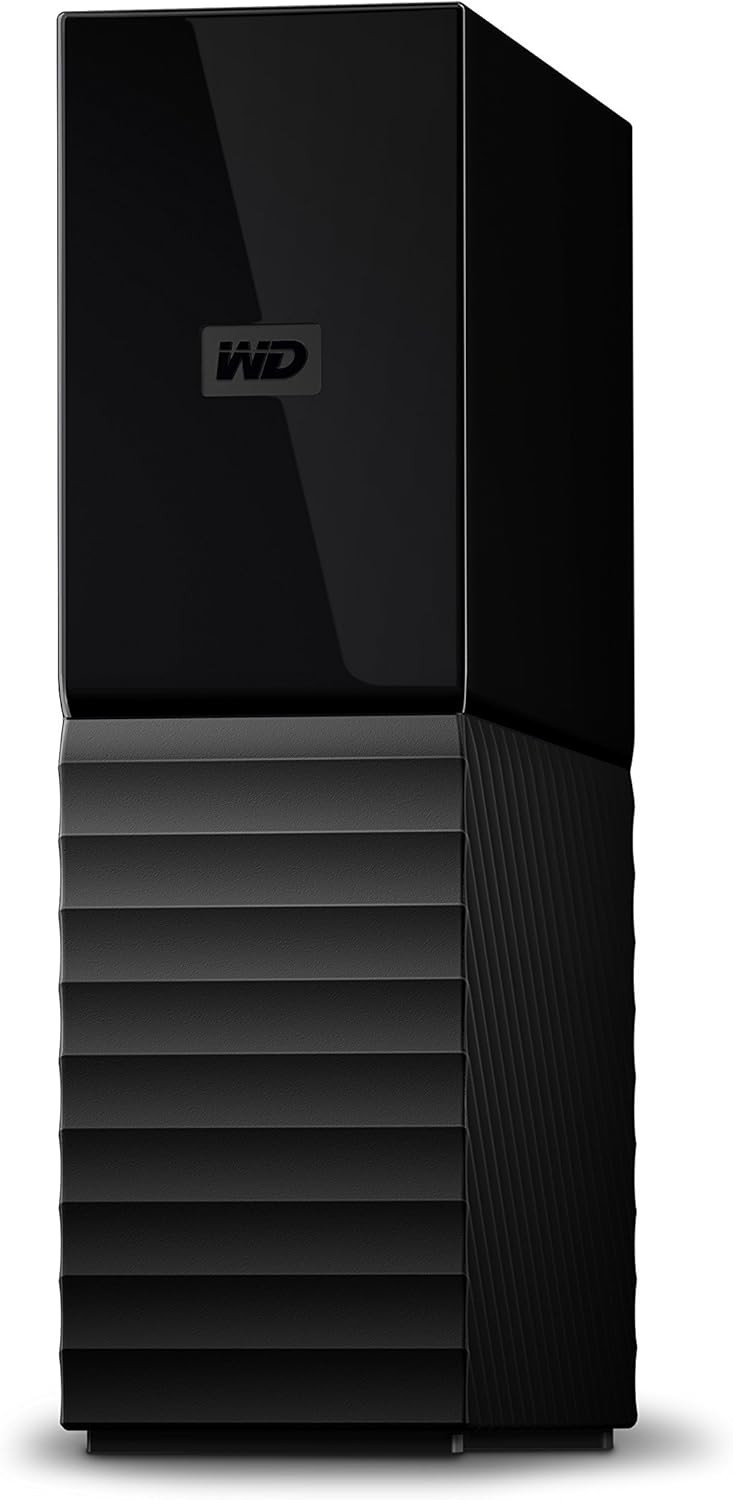
Desktop drives include a compact wall adapter and usually spin larger 3.5 inch mechanisms. They are heavier, they do not like being knocked around while spinning, and they are the better default when you want one big drive to sit next to a desktop tower or home server and swallow years of incremental backups.
How we researched this list
We started with HDDs we already track on Hard Drive Prices because that lets us show live variants, honest USD pricing, and spec fields without asking you to trust mystery gray-market SKUs. We then stress-tested each pick against what people actually do wrong with long-term storage: single-copy habits, silent bit rot, hot closets, and buying the smallest disk that barely fits today. The callouts and tables below spell out the habits that matter more than any one plastic enclosure.
HDD vs SSD for long-term archiving
Hard disk drives still win on dollars per terabyte when the goal is a shelf full of cold copies. You pay once, you park large sequential files, and you refresh the copy on a schedule instead of chasing incremental sync quirks.
Solid-state drives feel instant for everyday work, but they are still priced like premium components at the capacities photographers and video editors actually need for multi-year libraries. NAND also depends on electrical tricks to hold charge. Consumer SSDs are built assuming periodic power-on and controller housekeeping. If your threat model includes "I might not plug this in for half a decade," a mechanical HDD with a sensible rotation plan is the more boring, more legible bet for bulk archives. Keep SSDs for scratch disks, laptops, and anything that needs random IO speed.
For a sanity check on how large fleets of spinning disks behave in the real world, Backblaze publishes annualized failure rates across hundreds of thousands of drives in its storage pods. In its 2025 year-end Drive Stats write-up, Backblaze reported a 1.36% annualized failure rate for qualifying HDD models in its fleet, down from 1.55% in 2024, which is a useful reminder that most disks survive each year but not all of them do (Backblaze, 2025 Drive Stats blog).
Drive lifespan expectations
Consumer external HDDs are mechanical systems with motors, bearings, and controller boards. In practice, many units run five to ten years when they are not cooked, dropped while spinning, or run at 99 percent full forever. Failures cluster a bit like a bathtub curve: early DOA units often show up in the first weeks, then you get a quieter middle period, then wear items matter more as years stack up.
Watch for slower mounts, SMART warnings in disk utilities, new clicking sounds, and folders that suddenly need chkdsk or First Aid far more often than they used to. Those are your hints to clone now, not after the weekend.
The 3-2-1 backup rule (quick recap)
You want three copies of anything you cannot replace, on two different media types, with one copy offsite. External HDDs fit naturally as the second media type next to internal storage, and rotating a portable drive to a relative's house once a month beats pretending cloud sync is a backup.
Portable vs desktop tradeoffs for archives
Portables ride in backpacks, survive bus power quirks better than desktop towers, and tempt you to unplug mid-write if you are tired. Treat them like glass when the disk is spinning. Desktop units move air better, hold more platters, and belong on a shelf with strain relief on the USB cable and a simple surge-protected strip.
Encryption and hardware security
Hardware encryption ties the crypto engine to the drive's own controller, so your archive does not depend on a specific laptop OS version or a forgotten app update path ten years from now. Software encryption can be fine, but the weak link is whatever stack unlocks the volume. For long-term archives, we prefer lines that advertise hardware-backed protection and ship clear recovery warnings.
Ruggedness ratings in plain English
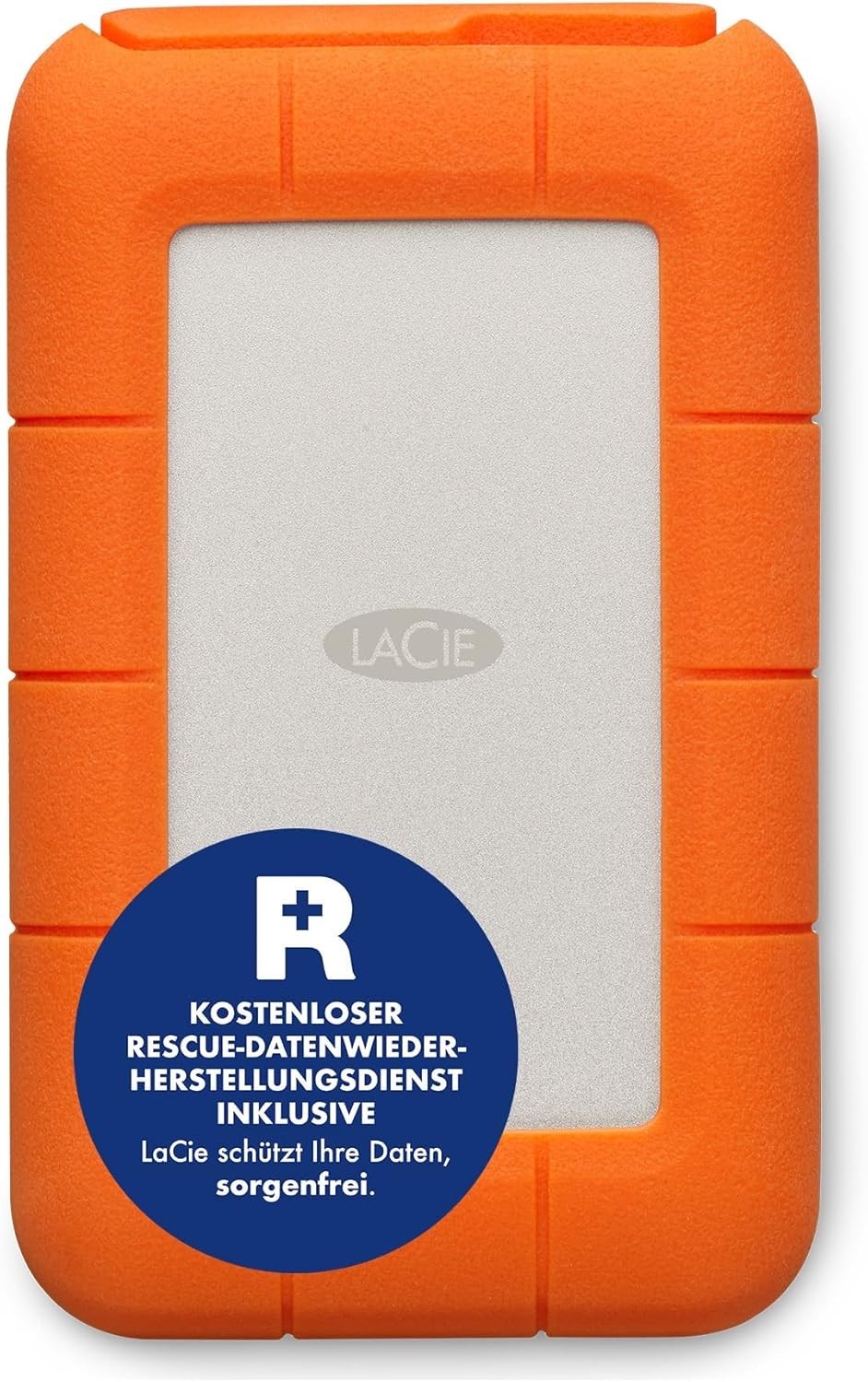
IP ratings describe dust and water ingress on a sealed product. Many HDDs skip full IP swim numbers and instead publish drop height from a rubber bumper. That still matters for location sound recordists, wedding shooters, and anyone who tosses a shuttle drive into a Pelican case. If you are only archiving from a couch to a closet shelf, you might not need a bumpered chassis. If your drive rides unpadded in a van, spend the bumpers.
Storage conditions for maximum lifespan
Keep drives between roughly 41 and 95 °F (5 to 35 °C) when they are powered, which is also where most vendors spec consumer operation. Avoid attics, glove boxes, and steamy bathrooms. Let a cold drive warm up to room temperature before you power it if it rode in a freezing car trunk all winter.
Common mistakes with long-term external storage
One copy syndrome is still the default failure mode. Never verifying checksums is the second. Filling every sector to 100 percent leaves no slack for filesystem bookkeeping and makes rewrite amplification worse on some hosts. Storing SSDs unpowered for years then expecting perfect reads is optimistic. Ignoring vibration on wobbly desks does not help HDDs either.
 Buy on Amazon